This guide shows exactly how to share local drives and optional devices (USB drives, clipboard, printers, smart cards) with a Windows VPS via Remote Desktop.
Windows Remote Desktop Connection — share local drives
- Open Remote Desktop Connection: Win → type mstsc → Enter.
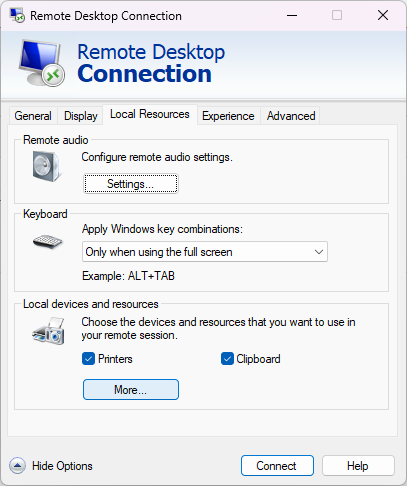
- Click Show Options → Local Resources.
- Under Local devices and resources, click More….
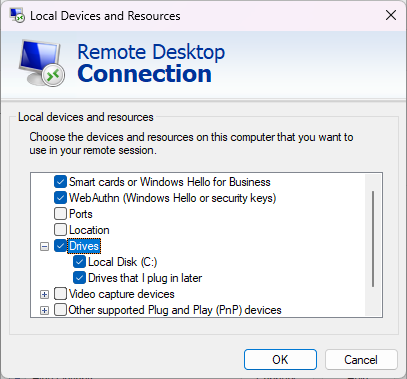
- Expand Drives and check the drive letters you want to share (e.g., C: or USB drives).
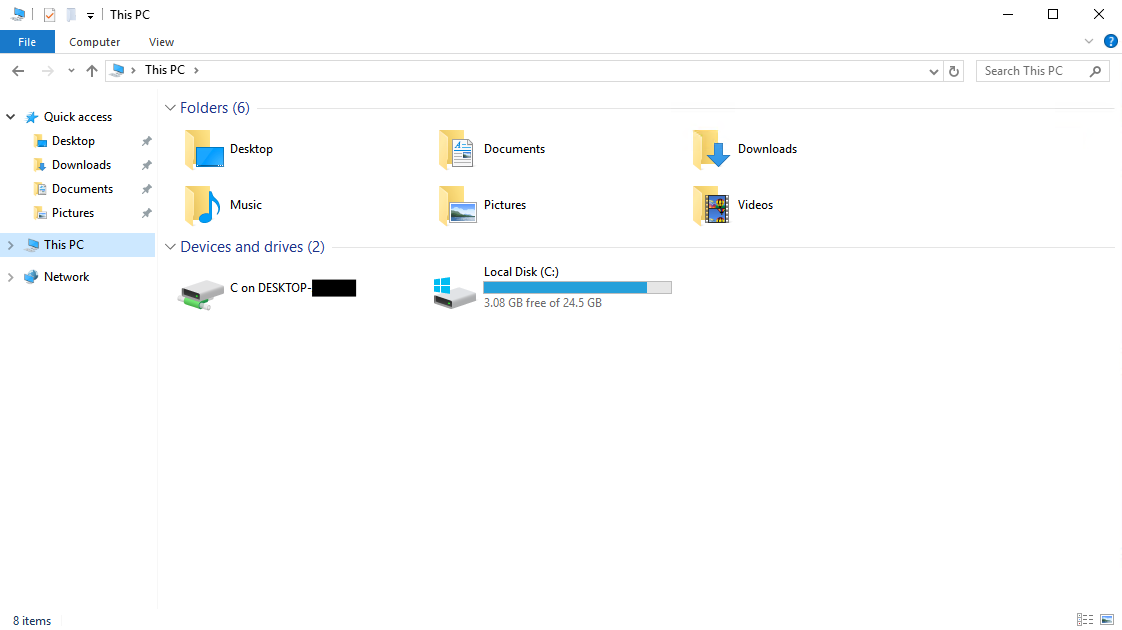
- Connect. In the VPS File Explorer, the drives appear as, for example, C on YOUR-PC-NAME.
Optional devices you can redirect
- USB drives / external disks: appear under Drives if selected (Windows client). For full USB device redirection, you may need third-party USB redirection if the device isn't handled as a storage volume.
- Printers: appear as local printers in the VPS when enabled.
- Clipboard: enables copy/paste text and files (if allowed by policy).
- Smart cards & serial ports: available from the same Local devices dialog if supported by the client and server.
Save these settings for repeat connections
- In Remote Desktop Connection → General → Save As… to store an .rdp file with redirection enabled.
- Double-click the saved .rdp to reconnect with the same device/page redirection automatically.
Server-side policy (if drives don’t show)
If redirected drives don’t appear, confirm the VPS allows drive redirection:
- Open the Local Group Policy editor on the VPS. (press Win + R → type
gpedit.msc → press Enter).
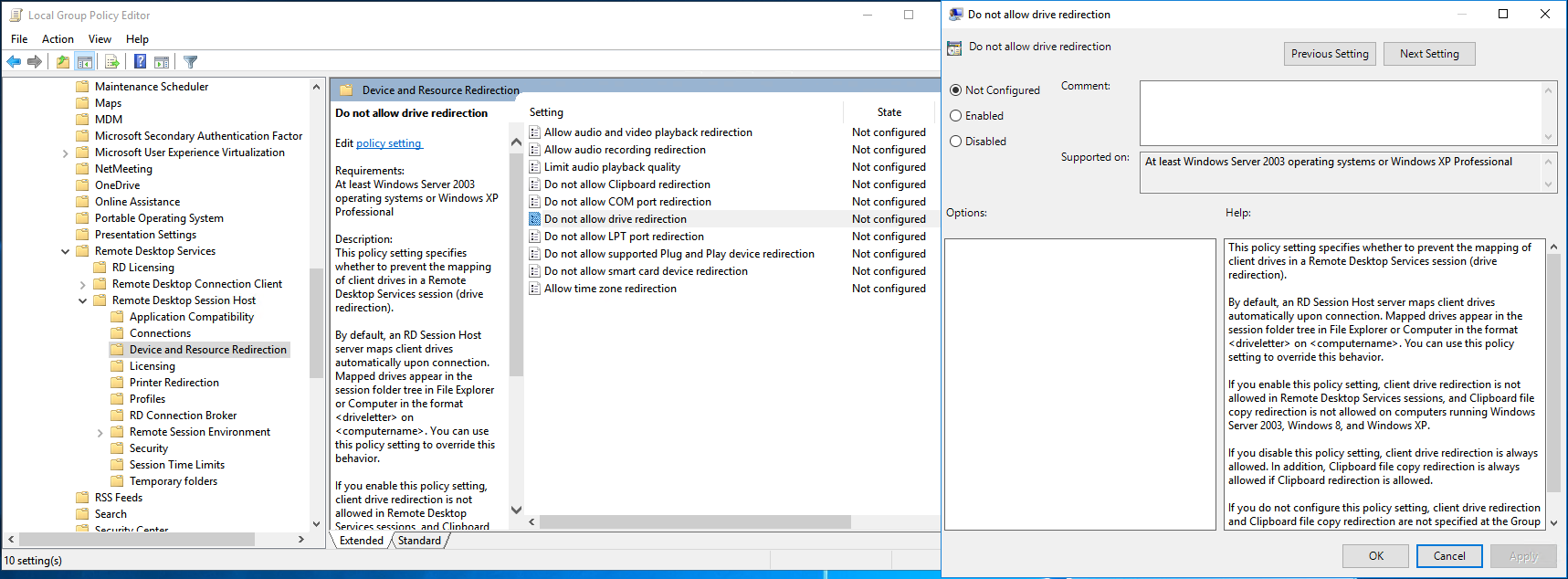
- Navigate to Computer Configuration → Administrative Templates → Windows Components → Remote Desktop Services → Remote Desktop Session Host → Device and Resource Redirection.
- Ensure "Do not allow drive redirection" is Disabled (or Not Configured).
Quick troubleshooting
- Drives don’t appear: reconnect after enabling drives; check
gpedit.msc (above) or verify if you selected the correct drive letters.
- USB device not visible: Windows treats some USBs as devices, not volumes — consider copying files to a local folder first, or use a USB redirection tool.
- File copy fails/slow: check network speed and ensure large transfers are tolerated by your network/bandwidth plan.
Security and best practices
- Only enable the drives or devices you need — avoid exposing entire local disks on shared or untrusted servers.
- Prefer copying specific files into a temporary folder and then transferring, rather than exposing the entire C: drive.
- Keep your client machine secure — redirected drives are only as safe as the local PC.
For more Evoxt VPS guides, visit
Evoxt Tutorials. If you need help,
open a support ticket.